

With the rapid evolution of digital devices, the way people interact with computers is changing dramatically. The Touch Display has become a popular alternative input method, allowing users to interact directly with content through taps, gestures, and stylus input. This shift raises an important question: can a Touch Display fully replace the traditional keyboard and mouse setup? While it brings a more intuitive and visually direct experience, its ability to completely replace conventional tools depends on the nature of the work, user habits, and productivity requirements. In many cases, it enhances workflows rather than replacing them entirely.
Strengths of a Touch-Based Workflow
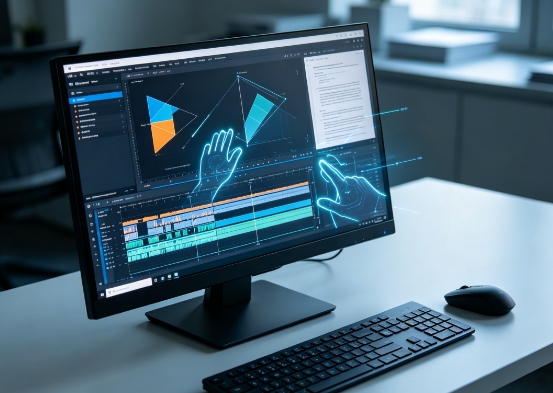
A Touch Display introduces a more natural and direct way of interacting with digital content, especially in visually driven tasks.
- Direct manipulation of elements: Users can drag, resize, rotate, and edit objects directly on the screen, reducing indirect actions through a mouse pointer.
- More intuitive creative control: Designers and artists benefit from drawing or sketching naturally on-screen, which closely mimics real-world tools.
- Faster gesture-based navigation: Pinch-to-zoom, swipe, and multi-finger gestures allow users to navigate complex interfaces quickly without relying on menus or shortcuts.
- Reduced device switching in simple tasks: Basic operations like scrolling, selecting, or annotating can be completed without touching a keyboard or mouse.
These advantages make the Touch Display particularly strong in creative and presentation-based environments where visual interaction is central.
Areas Where Traditional Input Still Performs Better
Despite its strengths, a Touch Display cannot fully outperform keyboard and mouse setups in several critical areas of productivity.
- Text-heavy work efficiency: Writing documents, coding, or data entry is significantly faster with a physical keyboard due to tactile feedback and muscle memory.
- Precision control tasks: Activities like spreadsheet editing, CAD modeling, or detailed selection work require the fine accuracy that a mouse provides.
- Shortcut-dependent workflows: Many professional applications rely heavily on keyboard shortcuts to increase speed, which touch input cannot replicate efficiently.
- Long-duration comfort: Continuous touch interaction can lead to arm fatigue, while keyboard and mouse setups are ergonomically designed for extended use.
These limitations show that traditional input devices still hold a strong advantage in structured and productivity-focused environments.
Hybrid Workflow as the Most Practical Approach
Instead of fully replacing traditional tools, most professionals combine a Touch Display with keyboard and mouse usage to create a balanced workflow.
- Task separation strategy: Touch is used for visual interaction, while keyboard and mouse handle precision editing and fast commands.
- Enhanced productivity balance: Designers can sketch or manipulate visuals on-screen and then switch to keyboard shortcuts for adjustments and organization.
- Flexible working environments: Users can adapt input methods depending on the task, such as using touch during brainstorming and keyboard during final production.
- External device integration: Wireless keyboards and mice complement the Touch Display, ensuring that no productivity gap exists.
This hybrid model is widely considered the most efficient way to leverage the strengths of each input method.
Industry Applications and Real-World Usage
The effectiveness of a Touch Display replacing traditional tools varies greatly depending on industry requirements and job roles.
- Creative design and illustration: Artists benefit the most, as direct drawing and stylus input significantly enhance workflow and creativity.
- Video editing and motion graphics: Touch interaction improves timeline navigation, but keyboard shortcuts remain essential for precision editing.
- Business and office environments: Touch is useful for presentations and quick navigation, but not ideal for heavy typing or data management.
- Education and collaboration: Teachers and presenters use touch features for annotation and interactive demonstrations, making it a strong supplementary tool.
These use cases highlight that the Touch Display excels in visual interaction but does not universally replace traditional input systems.
Limitations That Prevent Full Replacement
Even with advanced technology, several practical challenges prevent a Touch Display from fully replacing keyboard and mouse setups.
- Software design constraints: Many professional tools are still optimized for keyboard and mouse input, limiting touch efficiency.
- User adaptation challenges: Professionals accustomed to shortcuts and precise mouse control may experience slower workflows when relying only on touch.
- Physical ergonomics concerns: Extended touch usage can lead to fatigue, especially when working on vertical screens for long periods.
- Cost efficiency considerations: High-end systems with advanced touch and stylus features can be expensive compared to traditional setups.
These factors reinforce the idea that complete replacement is not yet practical for most users.
Conclusion
In conclusion, a Touch Display significantly enhances interaction by offering a more intuitive, visual, and direct way of working. It can replace many basic functions of a keyboard and mouse, particularly in creative and presentation-driven tasks. However, it still falls short in areas requiring speed, precision, and heavy text input. For most professionals, the best solution is not replacement but integration—using touch for creativity and traditional tools for efficiency. Ultimately, whether a Touch Display can replace a keyboard and mouse depends on the user’s workflow, but in today’s environment, it serves best as a powerful complement rather than a full substitute.
0